


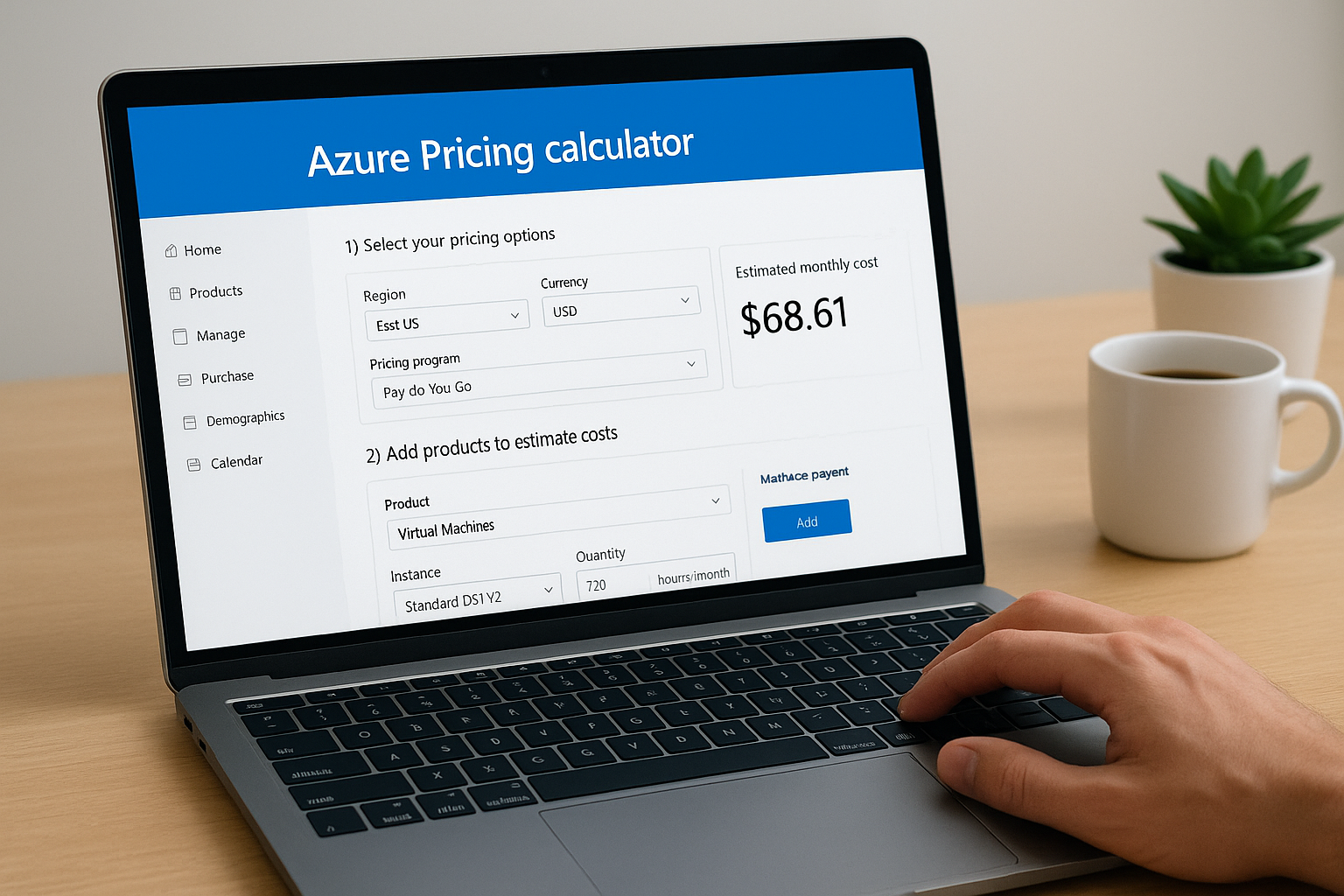
Spinning up resources in Azure without knowing the bill ahead of time is a fast way to blow through your IT budget. The Azure pricing calculator is Microsoft’s free tool for building cost estimates before you commit a single dollar, but with hundreds of services, dozens of configuration options, and region-specific pricing, it’s easy to get lost or end up with numbers that don’t reflect reality.
At Aristek, we help organizations plan, deploy, and manage cloud infrastructure across industries like healthcare, finance, and manufacturing. That means we’ve spent thousands of hours inside the Azure pricing calculator, building estimates for everything from single-VM deployments to complex multi-service architectures. We know where the tool shines, and where it trips people up.
This guide walks you through how to use the calculator step by step, interpret the results accurately, and avoid the common mistakes that lead to budget surprises. Whether you’re evaluating Azure for the first time or refining an estimate for an upcoming migration, you’ll walk away with a clear process for forecasting your cloud costs in minutes, not days.
What the Azure Pricing Calculator does
The Azure pricing calculator is a free, browser-based tool from Microsoft that lets you build detailed cost estimates for any combination of Azure services before you deploy a single resource. You select the services you plan to use, configure them to match your intended setup, and the calculator produces a monthly cost estimate based on current published prices. Nothing gets provisioned, and no credit card is required.
The calculator gives you a working estimate, not a guaranteed bill. Your actual costs will depend on real usage, data transfer patterns, and any reserved instance agreements you hold with Microsoft.
How the calculator is structured
When you open the tool, you’re working across three main areas. The Products panel lists every Azure service, organized by category: compute, storage, networking, databases, AI, and more. The estimate workspace is where you build your configuration by adding and adjusting services. The cost summary at the bottom updates in real time as you make changes, so you see the impact of each decision immediately.

Each service you add opens a configuration block directly in the workspace. For a virtual machine, that means selecting the region, operating system, instance series, tier, and expected hours per month. For Azure SQL Database, you configure the deployment model, service tier, compute hardware generation, and storage size. The inputs vary by service, but the structure stays consistent throughout.
What the calculator accounts for
The tool covers a wide range of cost variables that show up in real Azure bills. You can factor in compute hours, storage capacity, read and write operations, outbound data transfer, support plan tiers, licensing options like Azure Hybrid Benefit, and reserved instance pricing versus pay-as-you-go rates. This is what makes the calculator more valuable than a rough back-of-envelope estimate: it surfaces line items you would otherwise miss until the invoice arrives.
A practical example helps here. If you’re planning a web application on Azure App Service with an Azure SQL Database backend, blob storage for file uploads, and Azure CDN for static assets, you can build each of those components as separate blocks in the workspace. The calculator combines them into a single monthly total that reflects your actual architecture, not a generic number based on one service in isolation.
The calculator also supports multiple currencies and geographic regions, which matters when you’re evaluating deployments across different markets or presenting cost projections to stakeholders who work in a currency other than USD. Switching regions in the configuration automatically pulls in that region’s pricing rates, letting you compare costs between, say, East US and West Europe without doing any manual conversion. That kind of flexibility makes the azure pricing calculator useful for both initial scoping and for stress-testing your architecture decisions before you commit to a deployment region.
Step 1. Set your pricing context
Before you add a single service, you need to establish the baseline settings that control how the calculator prices everything in your estimate. Skipping this step is the most common reason people end up with numbers that don’t match their actual invoices. The azure pricing calculator lets you define your region, currency, and pricing program upfront, and every service you add will inherit those settings.
Choose your region
Your deployment region is the single most impactful pricing variable you’ll set in this step. Azure charges different rates for the same service depending on where it runs, and the difference is not always small. East US typically carries some of the lowest compute prices in the platform, while regions like Brazil South or South Africa North run higher due to infrastructure and energy costs.
If you haven’t locked in a deployment region yet, set your estimate to the region closest to your primary user base, then run a second estimate in a lower-cost region to see if the trade-off is worth it.
To set your region, look for the region dropdown inside each service configuration block. There is no single global region selector at the top of the page; you set it per service. That means if you’re running all your resources in one region, you need to manually select it for each service block you add.
Select your currency and pricing program
At the top of the calculator page, you’ll find a currency selector that applies globally to your estimate. Set this before you start adding services so your totals display in the currency your budget is tracked in. Available options include USD, EUR, GBP, JPY, and several others.
The pricing program dropdown is equally important. Your choices are typically Dev/Test, pay-as-you-go, and Enterprise Agreement rates. If your organization holds an EA with Microsoft, selecting that option will reflect your contracted pricing rather than public list rates, which can produce meaningfully different totals.
Step 2. Add services and configure details
With your pricing context set, you’re ready to build the actual estimate. Click the "Add a product" button in the workspace to open the product panel. You can browse by category or use the search bar to find a specific service by name. Once you click a service, it drops directly into your estimate workspace as a configuration block, ready for you to fill in.
Finding and adding the right services
The azure pricing calculator groups services into categories like Compute, Storage, Databases, Networking, and AI + Machine Learning. If you’re building a standard application stack, you’ll typically pull from at least two or three categories. A common starting stack looks like this:
- Compute: Azure Virtual Machines or Azure App Service
- Database: Azure SQL Database or Azure Cosmos DB
- Storage: Azure Blob Storage for files and backups
- Networking: Azure Bandwidth for outbound data transfer
Add each service separately so you can configure and adjust it independently without affecting the rest of your estimate.
Configure each service block accurately
Once a service appears in your workspace, every configuration decision you make directly changes the estimated cost, so take time with each block rather than accepting the defaults. For a Virtual Machine, set the instance series and size to match what you actually plan to deploy. For Azure SQL Database, select the correct deployment model (single database vs. elastic pool) and service tier (General Purpose, Business Critical, or Hyperscale).
The default configurations in each service block are rarely a match for production workloads. Always adjust them to reflect your actual planned setup before recording any numbers.
Work through each field top to bottom. Most blocks follow the same pattern: region, then tier or SKU, then optional add-ons like redundancy or support. If a field has a tooltip icon next to it, click it. Microsoft’s inline descriptions often clarify the difference between options that look similar on the surface, which saves you from picking the wrong tier and skewing your entire estimate.
Step 3. Estimate usage, storage, and data
The configuration fields you’ve set so far define what services you’re running. This step is where you define how much you’re running them. Usage, storage, and data transfer are the three variables that have the biggest impact on your monthly total, and they’re also the ones most commonly underestimated in early estimates.
Estimating compute hours and storage capacity
For compute resources, the key input is hours per month. A virtual machine running continuously for a full month totals roughly 730 hours. If you plan to run it only during business hours (8 hours a day, 5 days a week), that drops to around 160 hours, which cuts your compute cost significantly. Enter the number that reflects your actual planned uptime, not the default.
If you’re unsure of your usage pattern, build two versions of the estimate: one at full hours and one at your expected hours. The difference will tell you how much you can save with a scheduled shutdown policy.
Storage inputs follow a similar pattern. Enter your expected capacity in gigabytes or terabytes depending on the service. For Azure Blob Storage, you’ll also need to estimate the number of read and write operations per month. These are easy to overlook, but at scale they add real cost to your bill. A reasonable starting point for a medium-traffic application is 100,000 write operations and 1,000,000 read operations per month.
Accounting for data transfer
The azure pricing calculator includes a dedicated field for outbound data transfer in most networking and storage service blocks. Inbound data to Azure is generally free, but outbound transfer is billed by the gigabyte, with tiered pricing that drops as your volume increases. Estimate your monthly outbound traffic based on your expected user count and average payload size per request.
A practical way to calculate outbound transfer is to use this formula:
Monthly outbound (GB) = average response size (MB) x requests per day x 30 / 1,024
Plug that number into the bandwidth field for each relevant service block to complete your usage estimate.
Step 4. Apply discounts and review totals
Once your usage inputs are in place, the azure pricing calculator gives you several discount options that can substantially reduce your projected monthly costs. This step is where estimates shift from rough guesses to actionable budget figures, so don’t skip past it just because the default totals look reasonable at first glance.
Apply Azure Hybrid Benefit and reserved instance pricing
The two biggest discount levers in the calculator are Azure Hybrid Benefit and reserved instance pricing. Azure Hybrid Benefit lets you apply existing Windows Server or SQL Server licenses covered by Software Assurance toward your Azure workloads, which can cut compute costs by up to 40 percent on eligible VMs. Look for the "Azure Hybrid Benefit" checkbox inside each Virtual Machine or SQL Database configuration block and enable it if your organization holds qualifying licenses.

Reserved instance pricing works differently. Instead of paying pay-as-you-go rates, you commit to a 1-year or 3-year term for a specific VM size and region, and the calculator shows you the discounted rate upfront. Use the toggle inside each compute block to switch between pay-as-you-go and reserved pricing to see the exact savings side by side.
If you’re planning to run a workload continuously for more than 12 months, reserved instance pricing almost always produces a lower total than pay-as-you-go, even accounting for the commitment.
| Discount Type | Typical Savings | Where to Enable |
|---|---|---|
| Azure Hybrid Benefit | Up to 40% on compute | Checkbox in VM/SQL block |
| 1-Year Reserved Instance | ~30% vs. pay-as-you-go | Pricing toggle in compute block |
| 3-Year Reserved Instance | ~50% vs. pay-as-you-go | Pricing toggle in compute block |
| Dev/Test Pricing | Varies by service | Pricing program selector at top |
Review and export your completed estimate
Scroll to the cost summary panel at the bottom of the workspace to review your full monthly total across all services. Check each line item against your intended architecture one more time before you finalize the numbers. The calculator lets you export your estimate as an Excel file using the "Export" button, which makes it easy to share with stakeholders or drop directly into a budget proposal.

Wrap up and plan next steps
The azure pricing calculator gives you a structured way to build honest cost projections before you commit to any Azure infrastructure. You’ve now seen how to set your pricing context, configure individual services, account for real usage patterns, and apply discounts that can cut your monthly total by 30 to 50 percent. That process turns an abstract architecture diagram into concrete numbers your finance team can act on.
Estimates are only as useful as the decisions they drive. Once you have a solid projection, align it with your broader infrastructure roadmap and make sure the right services are configured from day one. Getting the architecture right before you deploy saves far more than any reserved instance discount can recover after the fact.
If you’re ready to move from estimate to execution, talk to our infrastructure team at Aristek to get expert guidance on your next cloud deployment.


Leave a Reply