


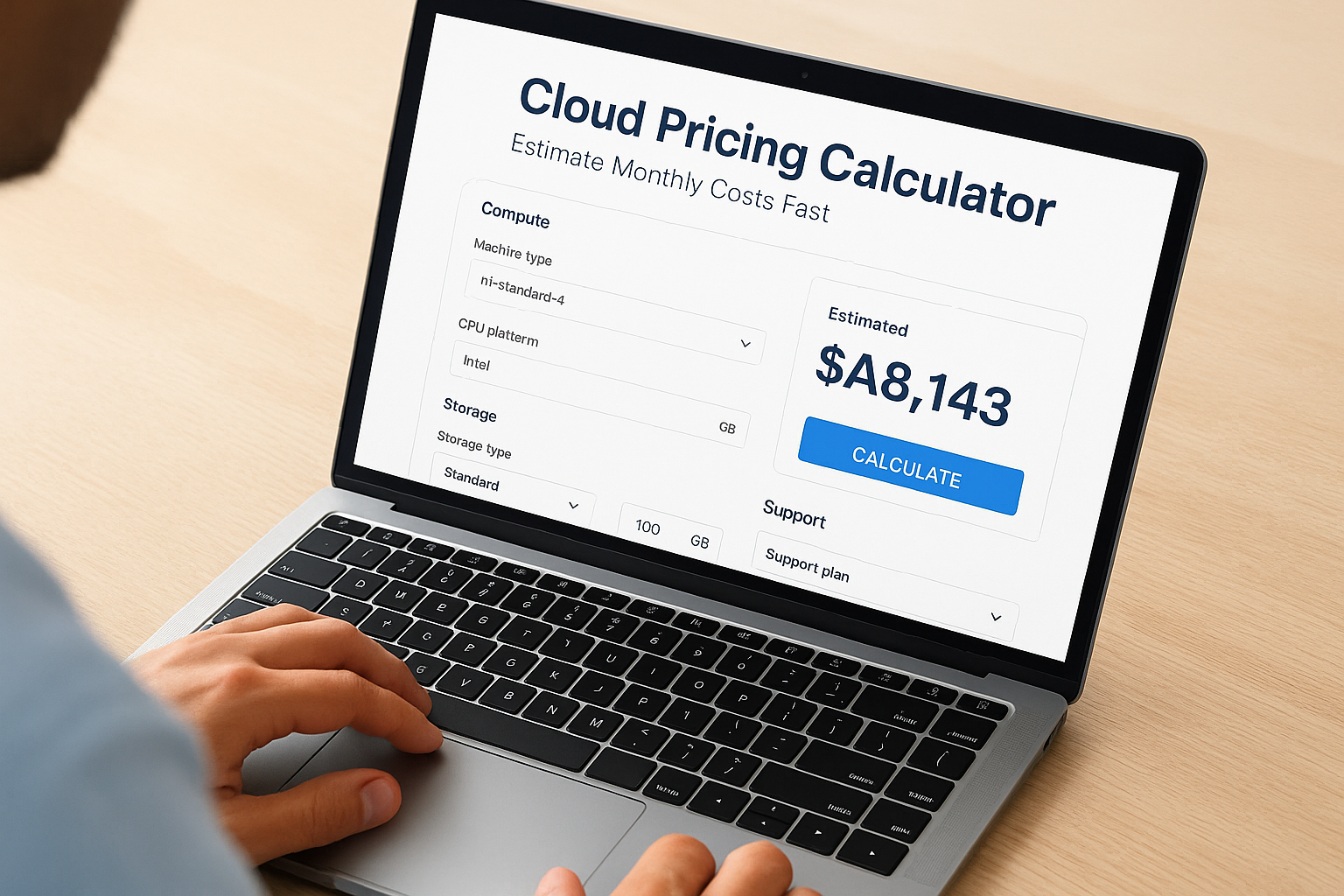
Spinning up workloads on Google Cloud Platform without a cost estimate is like signing a contract without reading the terms. The Google Cloud Pricing Calculator exists specifically to prevent that, it lets you model the exact services you plan to use and see projected costs before you commit a single dollar. Whether you’re pricing out a few Compute Engine VMs, a Cloud SQL instance, or a full multi-service architecture, this tool gives you the numbers you need to budget with confidence.
The problem? The calculator isn’t always intuitive. GCP offers hundreds of SKUs across dozens of services, and the pricing page alone can send you down a rabbit hole of per-second billing, sustained-use discounts, and regional cost differences. Without a clear walkthrough, it’s easy to either overestimate your budget or, worse, underestimate it and get hit with a surprise bill at the end of the month.
At Aristek, we help organizations plan, build, and manage their cloud infrastructure as part of our managed IT services. That means we spend a lot of time inside tools like the GCP pricing calculator, modeling costs for clients across industries like healthcare, manufacturing, and finance. We put this guide together based on that hands-on experience, so you can get accurate estimates fast, whether you’re evaluating GCP for the first time or refining costs on an existing deployment.
This guide walks you through the calculator step by step: how to access it, how to configure services, how to read the output, and how to avoid the most common mistakes that throw estimates off. By the end, you’ll know how to generate reliable monthly and yearly cost projections for your specific GCP setup, no guesswork, no billing surprises.
What the pricing calculator does and what you need
The Google Cloud pricing calculator is a free, browser-based tool available at cloud.google.com/products/calculator. You use it to model the cost of any GCP service configuration before you deploy a single resource. It covers over 100 products, from Compute Engine and Cloud SQL to BigQuery, Kubernetes Engine, Cloud Storage, and Cloud CDN. You input your expected usage parameters, and the tool outputs a monthly and yearly cost projection based on current GCP list prices.
The calculator reflects list prices, not your actual invoice. Committed use discounts, negotiated contracts, and promotional credits get applied separately, so always treat the calculator output as a starting baseline, not a final bill.
How the calculator works
This tool runs on a component-based model: you add each GCP service separately and configure its specific parameters. For a Compute Engine VM, that means selecting the machine type, region, operating system, and average monthly usage hours. For Cloud Storage, you specify the storage class, total data volume, and expected data egress. Each service has its own input form with dropdowns, text fields, and sliders that map directly to the variables GCP uses to calculate your bill.

After you configure a service, it appears as a line item in the estimate panel on the right side of the screen. You can stack as many services as your architecture requires, and the panel totals everything in real time. The tool also lets you save, share via URL, or export your estimate to a PDF or Google Sheet, which makes it easy to hand off to finance or a procurement team without transcribing numbers.
What you need before you open the calculator
Going into the calculator without preparation produces unreliable numbers and forces you to redo the estimate. Before you start, pull together your architecture inputs so you can fill out each service form accurately. Here is the information you need across common service categories:
| Input category | What to define |
|---|---|
| Compute | Machine type, vCPU count, RAM, OS license, hours of use per month |
| Storage | Storage class (Standard, Nearline, Coldline, Archive), total GB or TB |
| Database | Engine type, instance tier, storage size, backup retention period |
| Networking | Expected egress volume, number of regions, CDN usage |
| Operations | Log volume ingested, monitoring metric volume, alerting policy count |
Working estimates based on your current infrastructure benchmarks are enough to produce a useful first projection. If you’re migrating from on-premises hardware, use your existing server specs as a starting point. If you’re building a net-new environment, start with the minimum viable configuration for each service, run the estimate, and then scale the inputs up to see how costs move.
Where to access the calculator
Go to cloud.google.com/products/calculator to open the tool directly. Google currently offers two calculator versions: the legacy interface and a newer version labeled "New Calculator" in the header. Both pull from the same pricing data, but the new version offers a cleaner layout and handles multi-service architectures more clearly with better grouping and a more readable estimate panel. Use the new version for any estimate involving more than two or three services.
You do not need a Google Cloud account to use the calculator. Any user with a browser can open it, configure services, and export results. That makes it practical early in the evaluation process, well before you have committed to GCP as a platform or provisioned any resources.
Step 1. Gather inputs for a realistic estimate
The biggest mistake people make with the google cloud pricing calculator is opening it cold. Without concrete inputs ready, you end up filling fields with rough guesses, and a rough-guess estimate is not useful for budget planning or vendor comparison. Spend 20 to 30 minutes gathering your architecture details first, and your estimate will reflect reality instead of optimism.
Map your compute requirements
Compute is typically the largest cost driver in any GCP estimate, so get these numbers right before anything else. You need to know the machine type and size for each VM or container workload: vCPU count, RAM, and operating system. If you are migrating from on-premises hardware, pull the specs directly from your existing servers. If you are building new, start with the smallest instance that meets your application’s minimum requirements.
You also need to estimate monthly usage hours per instance. A VM that runs 24/7 logs 730 hours per month. One that handles batch jobs for 8 hours a day logs roughly 240. That gap has a direct and measurable effect on your compute line item, so be honest about your expected runtime rather than assuming continuous operation.
Define your data and network usage
Storage and network egress costs get overlooked during initial estimates, then show up as surprises on the actual bill. For storage, identify each storage class you plan to use (Standard for frequently accessed data, Nearline for monthly, Coldline for quarterly, Archive for annual) and estimate the total volume in GB or TB per class. These tiers have very different price points, and mixing them incorrectly in the calculator will skew your monthly projection.
Egress costs apply when data leaves Google’s network, including transfers to other regions and to the public internet. Always estimate your expected monthly egress volume before you open the calculator.
For networking, estimate how much data your application transfers out of GCP per month. A data-heavy application serving users outside your primary region will accumulate egress charges that can rival your compute costs entirely.
Document your current baselines
If you have any existing infrastructure, export your current usage metrics before you sit down with the calculator. Use your monitoring or observability platform to pull average CPU utilization, storage consumption, and network throughput over the last 30 days. These numbers give you a factual foundation for every field you fill in.
When building a net-new environment, create a simple reference sheet before you open the tool:
| Service | Key inputs needed |
|---|---|
| Compute Engine | Machine type, vCPUs, RAM, OS, hours/month |
| Cloud Storage | Storage class, total GB/TB, retrieval frequency |
| Cloud SQL | Database engine, tier, storage GB, backup days |
| Cloud CDN | Cache fill volume, cache egress volume |
| VPC networking | Egress GB per month, number of destination regions |
Step 2. Build a baseline estimate in the calculator
With your inputs ready, open the Google Cloud pricing calculator at cloud.google.com/products/calculator and select the new calculator version. Click "Add to estimate" to pull up the full product list, then search for the first service you identified in Step 1. Work through your service list one product at a time rather than jumping between items, since a sequential approach keeps your estimate clean and reduces the chance of duplicating a service.
Add your compute services first
Compute Engine is the right place to start because it usually drives the largest share of your monthly costs and sets the context for how other services get sized. Click "Compute Engine" from the product list, then fill in each field using the specs from your reference sheet. Set the machine type, region, and monthly usage hours before you touch any other parameter.

Here is a quick reference for the most common Compute Engine inputs:
| Field | What to enter |
|---|---|
| Machine type | Match your VM spec (e.g., n2-standard-4 for 4 vCPUs, 16 GB RAM) |
| Region | The region where you plan to deploy (e.g., us-central1) |
| Operating system | Linux for open-source stacks, Windows if you need licensing |
| Committed use | None for a baseline; add commitments in Step 4 |
| Average hours/month | 730 for always-on, lower for batch or scheduled workloads |
Once you click "Add to estimate," the service appears as a line item in the right-hand panel with a monthly and yearly cost. Repeat this for each additional VM in your architecture.
Add storage and database services
After compute, add your Cloud Storage buckets and Cloud SQL instances using the same method. For Cloud Storage, select the correct storage class for each bucket (Standard, Nearline, Coldline, or Archive) and enter the total data volume you expect to store. For Cloud SQL, specify the database engine, instance tier, storage size, and backup retention period to get an accurate projection.
The region you select for each service directly affects its unit price. Always match the region in the calculator to the region where you actually plan to deploy, since costs vary by 10 to 30 percent across regions for the same configuration.
Review the estimate panel total at the bottom right of your screen once you have added all your services. That number is your baseline monthly cost before any discounts or optimizations.
Step 3. Add the hidden cost drivers
Your baseline estimate from Step 2 covers the obvious services, but several cost categories don’t appear until you dig into the product list. Operations (logging and monitoring), networking, and support plans consistently produce the largest gaps between a first estimate and the actual bill. Add these to your estimate now before you lock in any numbers.
Cloud Operations: Logging and Monitoring
Cloud Logging and Cloud Monitoring both have free tiers, but production workloads routinely exceed them. Cloud Logging gives you the first 50 GB of log ingestion per project per month at no cost; after that, you pay $0.01 per GB ingested. Cloud Monitoring charges per metric data point beyond the free tier. If your application generates high log volume, such as a microservices architecture with per-request logging, this line item grows fast.
In the calculator, search for "Cloud Logging" and enter your estimated monthly log ingestion volume in GB. Do the same for "Cloud Monitoring" if you plan to push custom metrics. Use your current log output rate as a baseline if you are migrating from an existing system.
Load Balancing and Network Services
Cloud Load Balancing charges per forwarding rule per hour and per GB of data processed. A standard HTTP(S) load balancer with five forwarding rules running continuously costs roughly $54 per month in forwarding rule fees alone, before any data processing charges. Add "Cloud Load Balancing" to your estimate and enter the number of forwarding rules and your expected monthly ingress volume.
Support plan costs are not included in the google cloud pricing calculator, so add them manually to your total. Google’s Enhanced Support starts at $500 per month and Premium starts at $12,500 per month, per the Google Cloud support pricing page.
Cloud CDN and Additional Network Fees
Cloud CDN charges for both cache fill (data moved from your origin to Google’s edge nodes) and cache egress (data served to end users). Add it to your calculator if your application serves static assets to users outside your primary region. Enter your expected monthly cache fill volume and cache egress volume separately, since both carry distinct per-GB rates that vary by destination region.
Use this checklist to confirm you have covered every hidden cost driver before you move to Step 4:
- Cloud Logging ingestion beyond 50 GB per month
- Cloud Monitoring custom metrics
- Cloud Load Balancing forwarding rules and data processing
- Cloud CDN cache fill and egress
- Inter-region network egress
- Support plan tier
Step 4. Compare scenarios and apply discounts
With a complete estimate in place, you now have the data you need to make a cost-informed architecture decision. The google cloud pricing calculator lets you save multiple estimates, which makes it straightforward to run side-by-side scenario comparisons before you commit to a configuration. Use this step to evaluate at least two alternatives: your baseline from Step 3 and at least one optimized version that incorporates GCP’s discount programs.
Build a scenario comparison
Start by duplicating your current estimate using the "Share estimate" button in the top right corner. This saves a shareable URL you can open in a separate tab as your baseline snapshot. Then return to your working estimate and modify a specific variable, such as swapping an n2-standard machine type for an n2-highmem variant, or moving a workload from us-east1 to us-central1 to test the regional price difference. Compare the two totals side by side to confirm whether the change is worth the tradeoff.
The table below shows the most impactful variables to test across a typical multi-service GCP architecture:
| Variable to test | Expected cost impact |
|---|---|
| Region (e.g., us-central1 vs. us-east4) | 5 to 15 percent difference on compute |
| Machine type family (N2 vs. E2) | E2 general-purpose VMs run 20 to 30 percent cheaper |
| Storage class (Standard vs. Nearline) | Nearline cuts storage cost by roughly 60 percent for infrequently accessed data |
| Committed use vs. on-demand | 1-year commit saves up to 37 percent on most machine types |
Apply committed use discounts
GCP offers two discount programs that significantly reduce your compute costs without requiring any application changes. Committed Use Discounts (CUDs) let you commit to a specific vCPU and memory configuration for one or three years in exchange for a discount of up to 57 percent on N2 machine types compared to on-demand pricing. You apply them directly in the calculator by selecting "1 year" or "3 year" under the "Committed use" field on the Compute Engine form.
Sustained use discounts apply automatically when a VM runs for more than 25 percent of a billing month, with no commitment required. The calculator applies these automatically once you set your monthly usage hours above 182.
For workloads with predictable traffic patterns, running both calculations with and without a committed use discount lets you quantify exactly what you save by locking in a one-year term. Enter that delta into your budget planning document alongside the baseline total to give your finance team a clear picture of the savings available if you commit now versus staying on on-demand pricing.

Keep your estimate accurate over time
A GCP cost estimate is not a one-time exercise. Cloud architectures change as you add services, scale workloads, and onboard new teams, and each change shifts your actual monthly spend away from your original projection. Revisit your google cloud pricing calculator estimate every 30 to 60 days and update the inputs to reflect your current usage patterns. Pull your actual billing data from the GCP Billing Console and compare it line by line against your calculator output to spot where your estimates drift from reality.
When your actual costs consistently run higher than your projections, treat that gap as a signal to audit your architecture inputs. Check for services you added without updating the estimate, egress volume that grew beyond your initial assumption, or log ingestion that crossed the free-tier threshold. Keeping your estimate current turns it from a one-time budget exercise into a reliable planning tool you can use every quarter. If you want help building and managing accurate cloud cost models for your organization, reach out to Aristek’s managed IT team to get started.


Leave a Reply